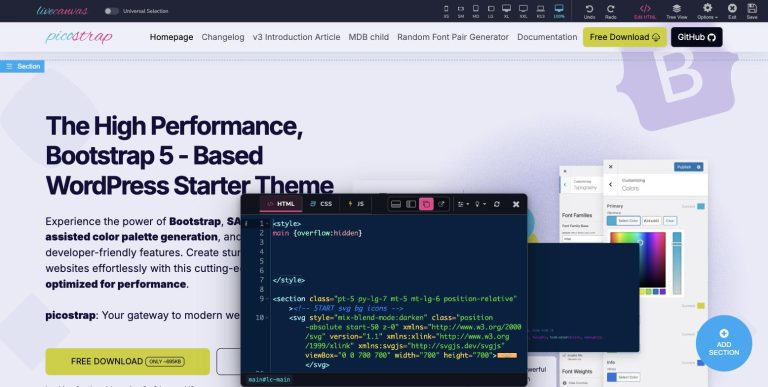
LiveCanvas 4.9.4: the code editor, reimagined

Hey everyone 👋
If you use LiveCanvas, you probably spend a big part of your day in one place: the code editor. And everyone uses it differently: some of you on a laptop, some on two monitors, some with the code below the page, some right next to it.
So for LiveCanvas 4.9.4 we rebuilt the code editor window from scratch, around your way of working. We called this release “A new beginning”, and we really hope it feels like one.
What’s new, at a glance
- A totally renewed code editor window: put your code below the preview, beside it, or in a floating window
- Multi-monitor editing: open the code editor in a separate window, with HTML, global CSS and global JavaScript kept in sync
- Clickable HTML breadcrumbs at the bottom of the window
- Remembered layouts: your layout, split sizes and floating window position are there when you come back
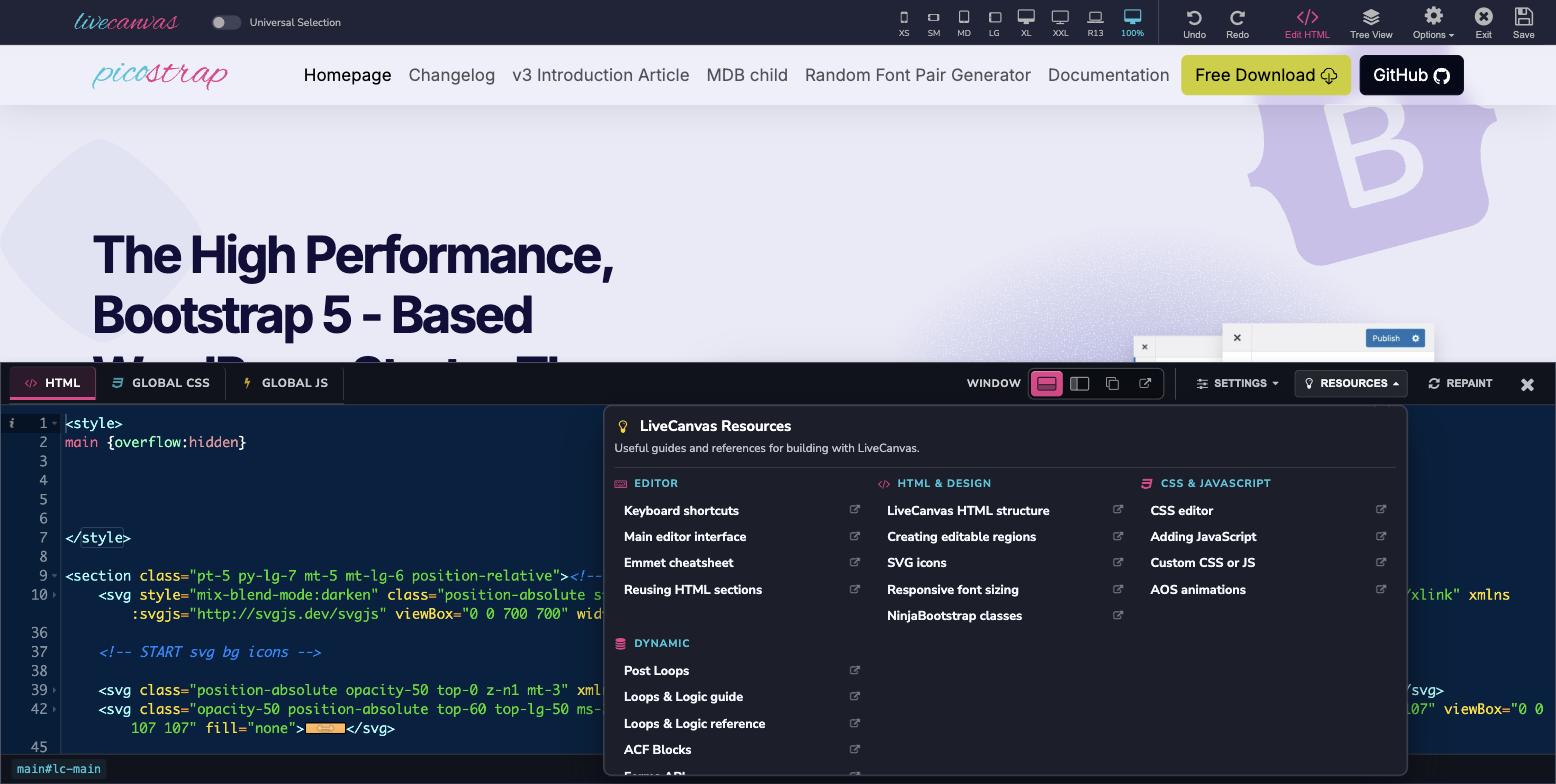
- Resources at your fingertips: docs, keyboard shortcuts, the Emmet cheatsheet and dynamic templating guides in one menu
- REST API isolation: the bundled Tangible template system is no longer loaded during REST API requests
Grab a coffee ☕ and let’s take a quick tour together.
Work the way you like
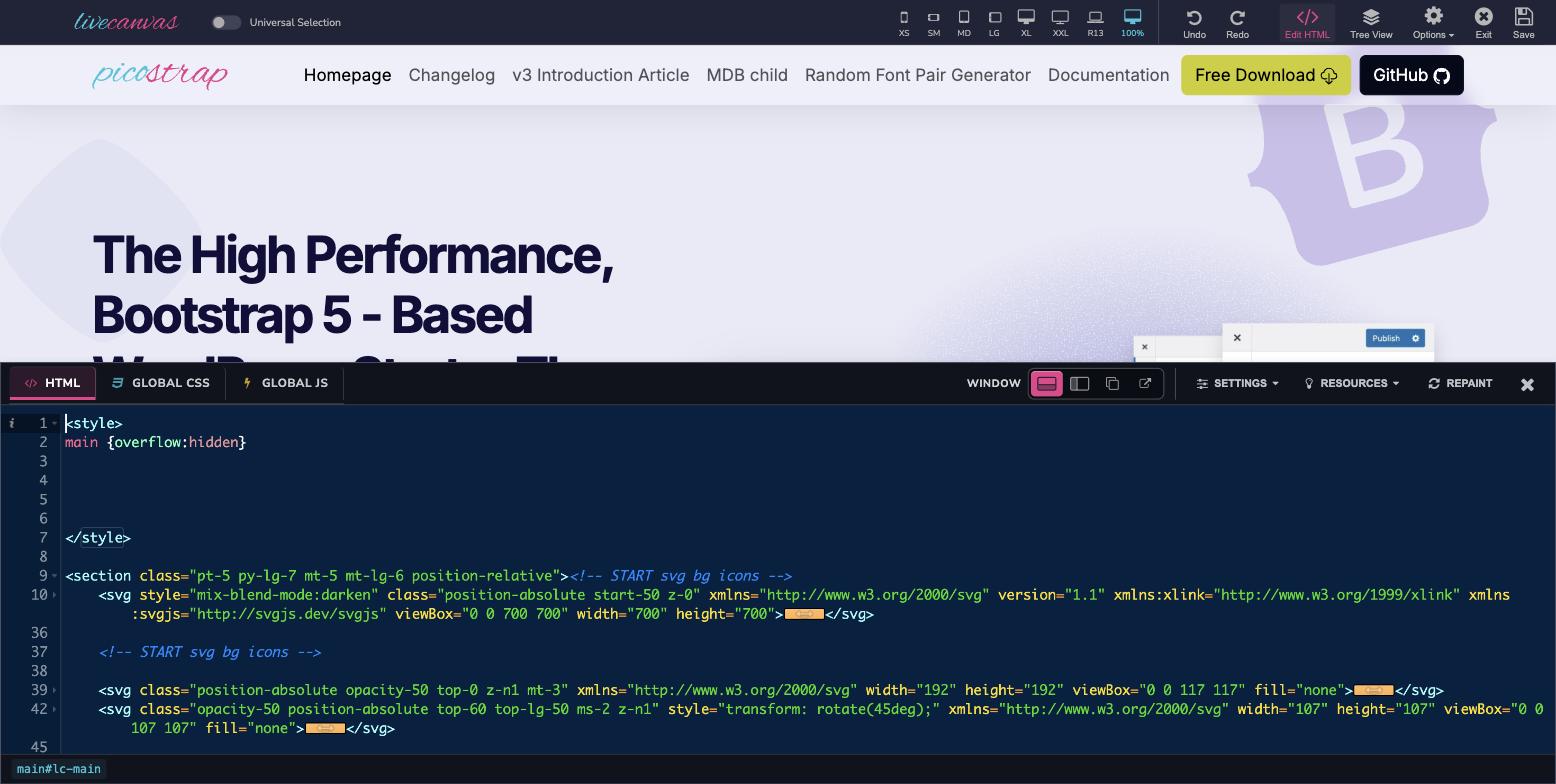
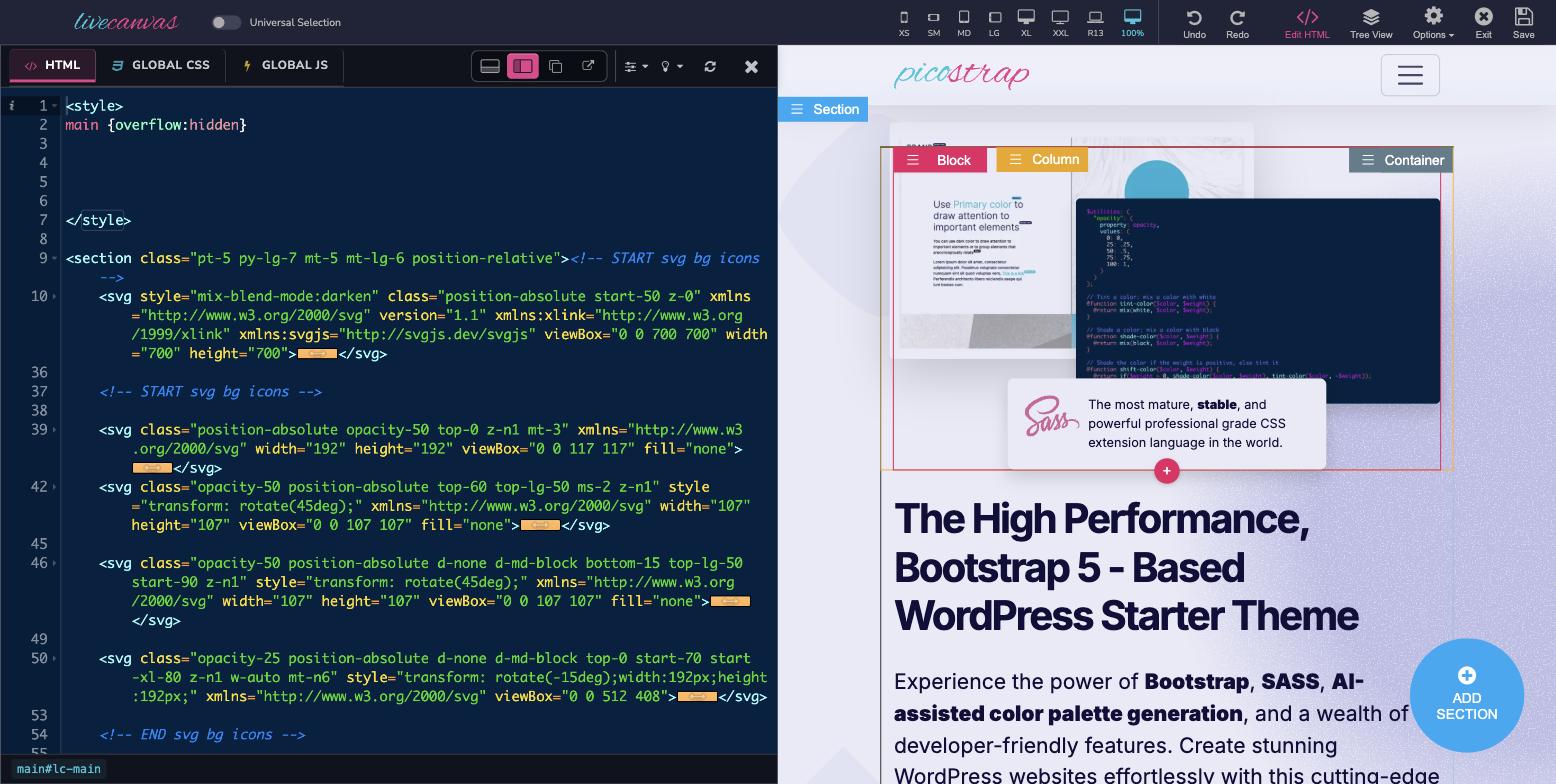
There’s no “right” way to set up your screen — so we stopped choosing for you. In the editor toolbar you’ll find a new Window switch:
- Split below: the page on top, your code underneath, both full width. Lovely for long lines of markup.
- Split beside: your code in a column right next to the page. Made for wide screens.
- Floating window: an editor you can move and resize anywhere, so it never sits on top of the part you’re working on.
You can drag the divider to find the balance that feels right to you. And when space gets tight, the toolbar shrinks to icons, so your code keeps the room.
Got two screens? Use them both
If you work with more than one monitor, this one is for you — and it’s probably our favorite. 💙
Choose External display and the code editor opens in its own window, ready to move to your second monitor. Keep the live page on one screen and your code on the other, both at full size.
Everything stays in sync — HTML, global CSS and global JavaScript. Type on one screen, see the result on the other.
Always know where you are
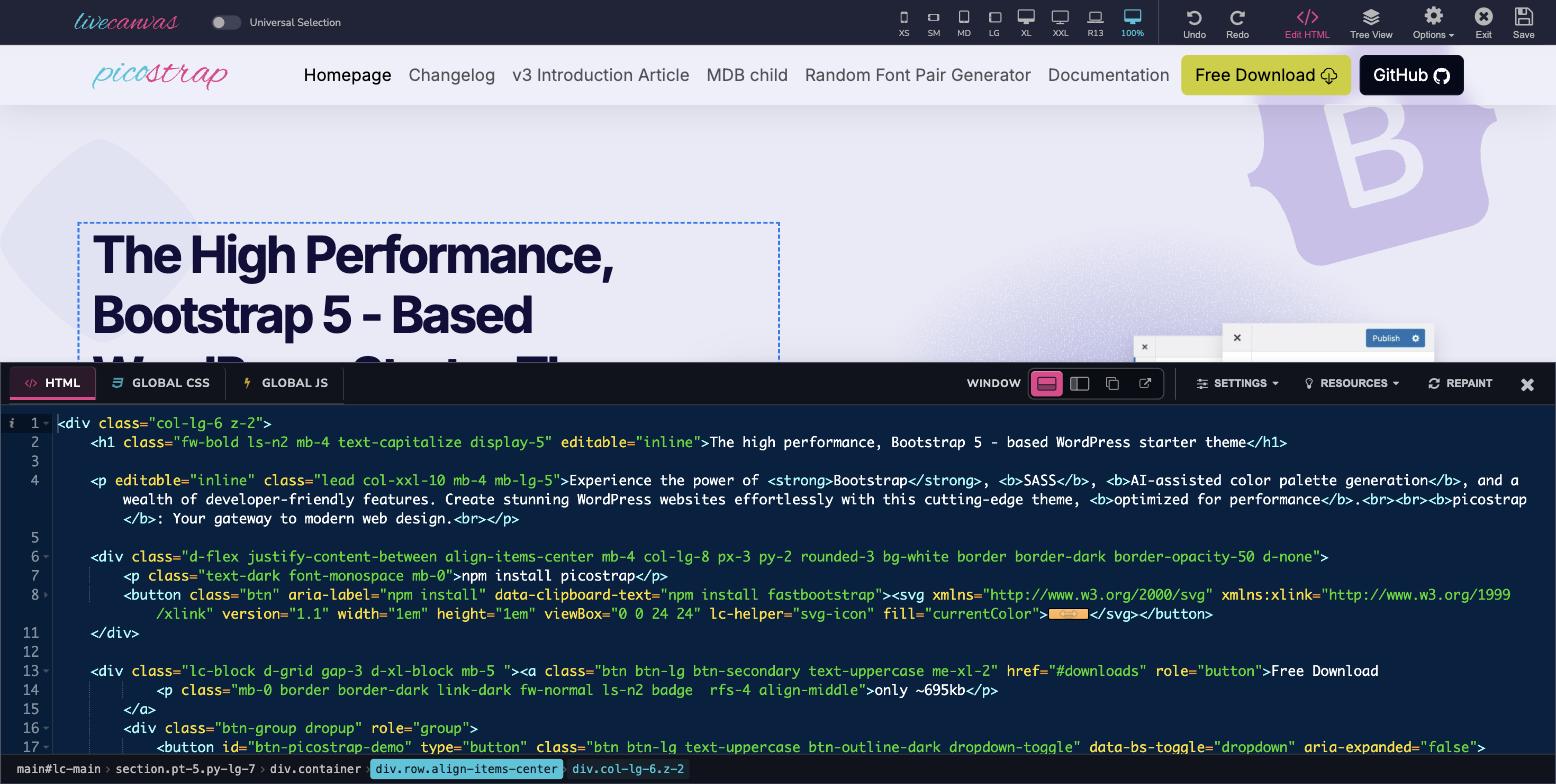
At the bottom of the code window there’s now a friendly little breadcrumb bar. It shows the path to the element you’re editing, classes included — for example main#lc-main › section.pt-5.py-lg-7 › div.container › div.row.align-items-center › div.col-lg-6.z-2.
Every step is clickable. Want the section around the column you’re on? Just click it. No more climbing up the document tree one step at a time.
It remembers how you like it
Set things up once and forget about it. Your layout, your split sizes and where you parked the floating window are saved in your browser and waiting for you next time.
Help is one click away
We gathered the guides you (and we!) keep open in other tabs into a new Resources menu, neatly grouped:
- Editor: keyboard shortcuts, the main editor interface, the Emmet cheatsheet, reusing HTML sections
- HTML & Design: LiveCanvas HTML structure, editable regions, SVG icons, responsive font sizing, NinjaBootstrap classes
- CSS & JavaScript: the CSS editor, adding JavaScript, custom CSS or JS, AOS animations
- Dynamic: Post Loops, the Loops & Logic guide and reference, ACF Blocks and more
Perfect if you’re just getting started — and handy even if you’ve been with us for years.
Make it yours
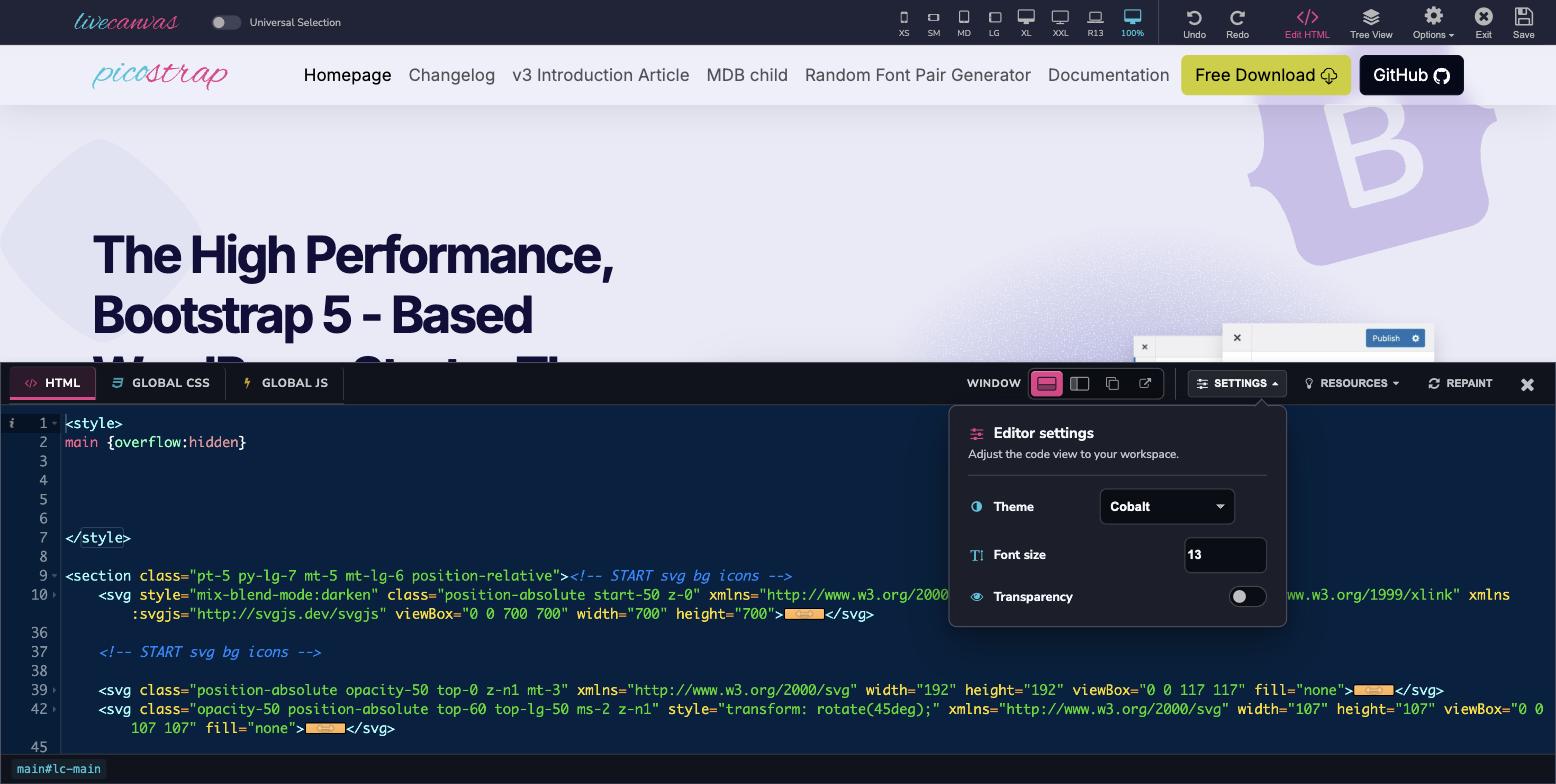
Right next to Resources, the Settings menu lets you pick your editor theme, choose a comfortable font size and turn on transparency. And whenever you want a fresh look at your page, Repaint refreshes the preview in one click.
A little something under the hood
The bundled Tangible template system is no longer loaded during REST API requests. You won’t see it, but your site does a bit less work on every API call.
Thank you — and come say hi 💬
LiveCanvas keeps getting better because of you: your ideas, your bug reports, your “what if…?” messages. So, from all of us: thank you.
Now we’d love to hear from you:
- 🖥️ Show us your setup. Split below, beside, floating or two monitors? Share a screenshot.
- 💡 Tell us what’s next. What would make the editor even better for you?
- 🤝 Help each other. Tips, snippets, questions — beginners are more than welcome.
The best place for all of this is our Discord community. Come in, say hi, and meet other people building with LiveCanvas.
LiveCanvas 4.9.4 is available now, and the full list of changes is on the changelog.
Happy building, and see you on Discord! 🚀